
When troubleshooting complex issues, it is sometimes necessary for our support team to obtain additional information about the network requests that are generated in your browser while an issue occurs.
A support team member may request that you record a HAR file, or a log of network requests, while that issue is occurring and then provide that to them for further analysis.
Below are some instructions about how you can easily generate a HAR file using Google Chrome. If you do not already have Google Chrome installed, please download it here and install it .
Note: Keep in mind that HAR files contain sensitive data, including content of the pages you downloaded while recording,your cookies, which will allow anyone with the HAR file to impersonate your account, all the information that you submitted while recording ( personal details, passwords, credit card numbers, etc.).
The following instructions apply to Chrome. Instructions for Internet Explorer and Firefox are available here .
To generate the HAR file for Chrome
- In Chrome, go to the page within Box where you are experiencing trouble.
- At the top-right of your browser window, click the Chrome menu (⋮).
- Select More Tools > Developer Tools. The Developer Tools window opens as a docked panel at the side or bottom of Chrome.
- Click the Network tab.
- Select Preserve log.
- Click the Clear button (
 ) to clear out any existing logs from the Network tab.
 - You will see a red circle (
 ) at the top left of the Network tab. This means the capture has started. If the circle is black, click the black circle to start recording activity in your browser.
 - Refresh the page and reproduce the problem while the capture is running.
- After you successfully reproduce the issue, right click on any row of the activity pane in the Network, and click Save as HAR with Content.
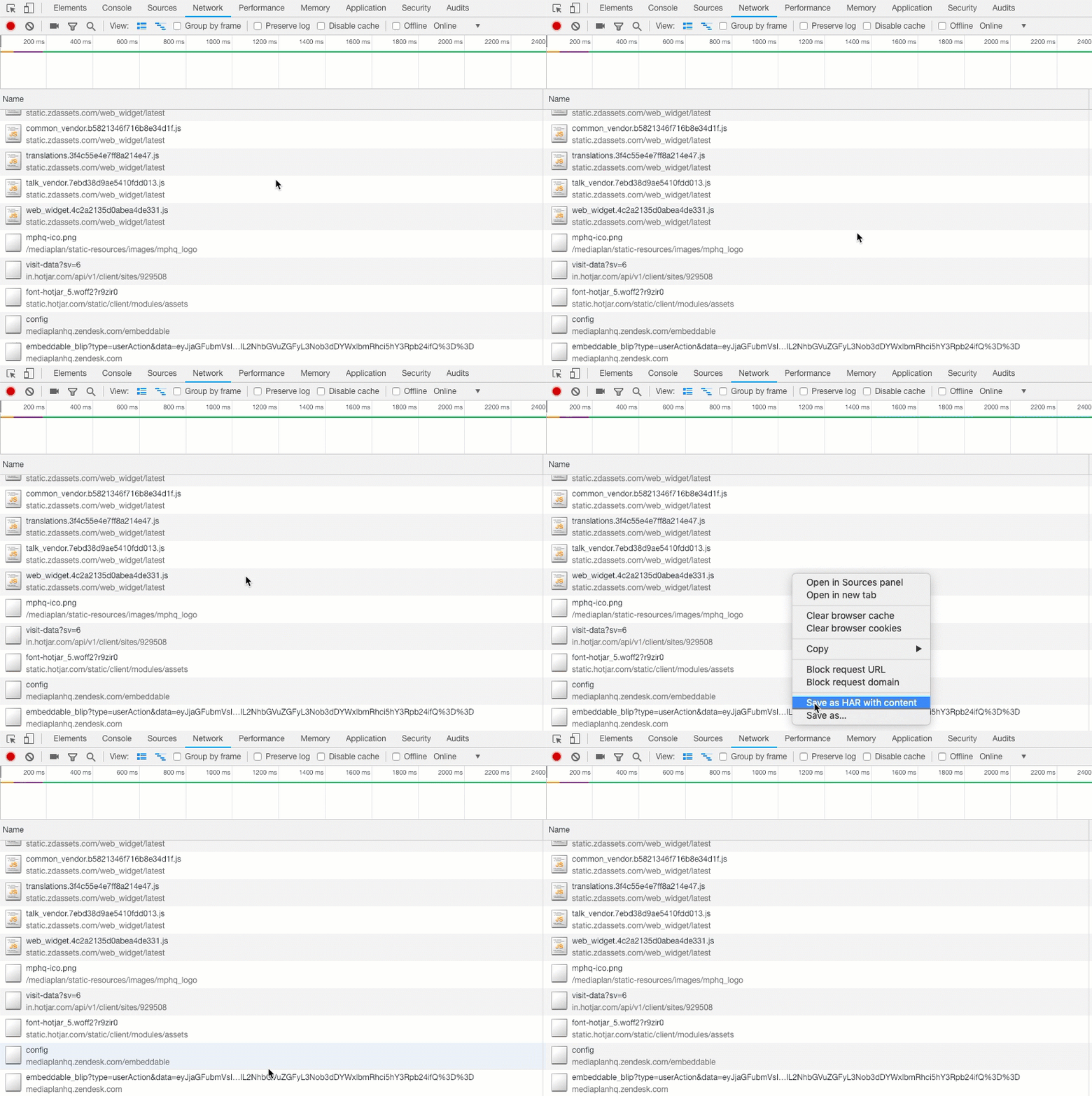
- Save the HAR file.
- Upload your HAR file to your ticket or attach it to your email so that we may analyze it.
Comments
0 comments
Article is closed for comments.