
The approval step in the accounting workflow enables the marketing team to validate that the invoices they received from media suppliers are accurate against what was booked in the insertion orders prior to send payment.
The marketing team typically verifies 3 things:
- that the right creative ran without error. (e.g. the newspaper inserted the right image without colour distortion.)
- that the ad ran on the right dates with adequate performance.
- that the invoiced cost is the right amount based on the negotiated cost.
Here are the activities to perform when a marketing team member approves an invoice from a media supplier:
1. Find the invoices ready for approval
Every marketing team have different strategies to approve invoices. Some approve them as soon as they are received and some bulk approve once per week/month.
Regardless of the approval strategy, it's important to quickly identify the invoices that require your approval.
Here are the steps to find invoices ready for your approval:
- STEP 1: Go to the Accounting module.

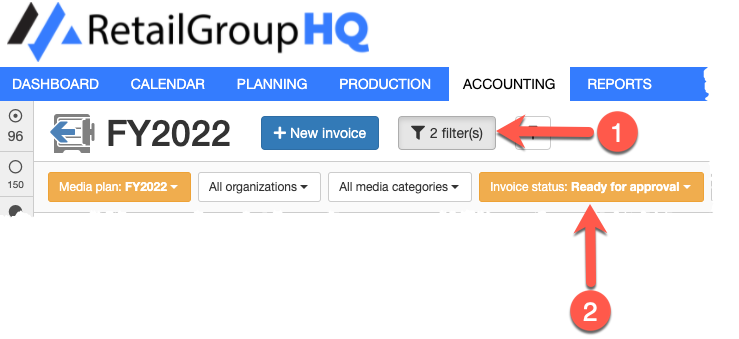
- STEP 2: Use the Search & Filters to lists all the invoices that require your approval.
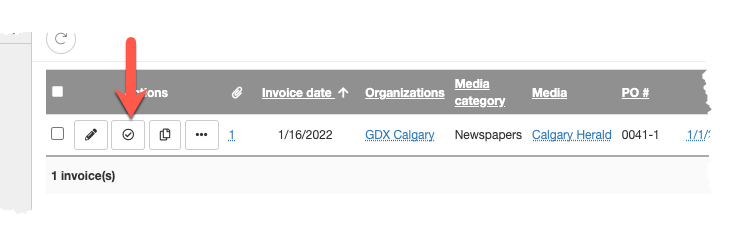
- STEP 3: Click the Approve button. This displays the Update invoice form and automatically sets the invoice status to Approved.
2. Validate the invoice information
Use the information in the invoice form including the creative files, the invoice files, etc. to validate that the invoice is accurate:
- that the right creative ran without error. (e.g. the newspaper inserted the right image without colour distortion.)
- that the ad ran on the right dates with adequate performance.
- that the invoiced cost is the right amount based on the negotiated cost.
3. Transition the invoice
Finally, when the invoice is approved, transition the status to the next step in your workflow.
Continue with these steps to transition the invoice:
- STEP 8: Select the invoice status in the Invoice workflow section.

By default, this is the Approved step which will notify the AP team that there's a new invoice to be paid.
NEXT STEP: Paying an invoice
Comments
0 comments
Article is closed for comments.