
Follow these steps to create media insertions from an existing xls file.
Imports can become tricky. Don't hesitate to contact our support center if you need help !
Step 1: Download a template
Starting from a xls template ensures that you have all the columns to properly import your media insertions.
Step 1: Go to the "Planning" module.
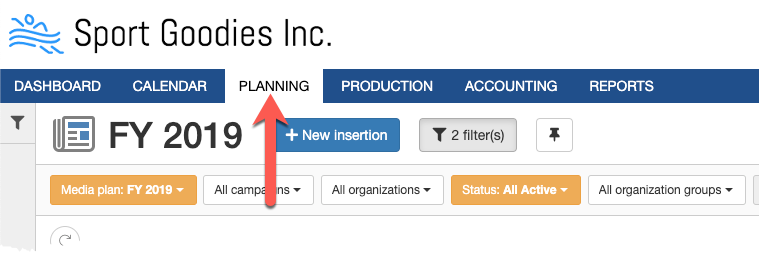
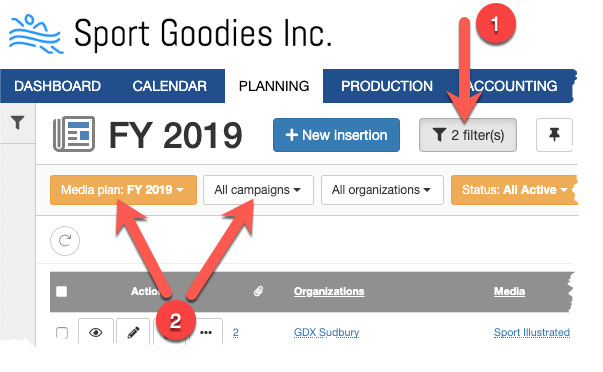
Step 2: Select your media plan and/or campaign in your filters. This is necessary to inform the system which custom fields to use in the template.
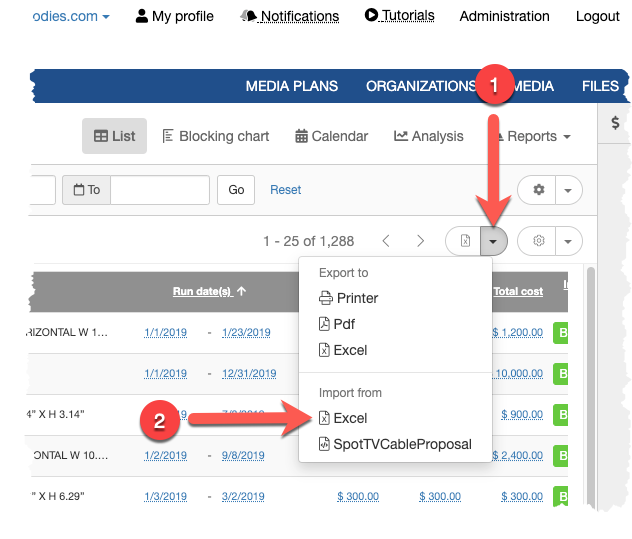
Step 3: Click on the import/export button. Select the import from Excel option. This will display the import xls form.
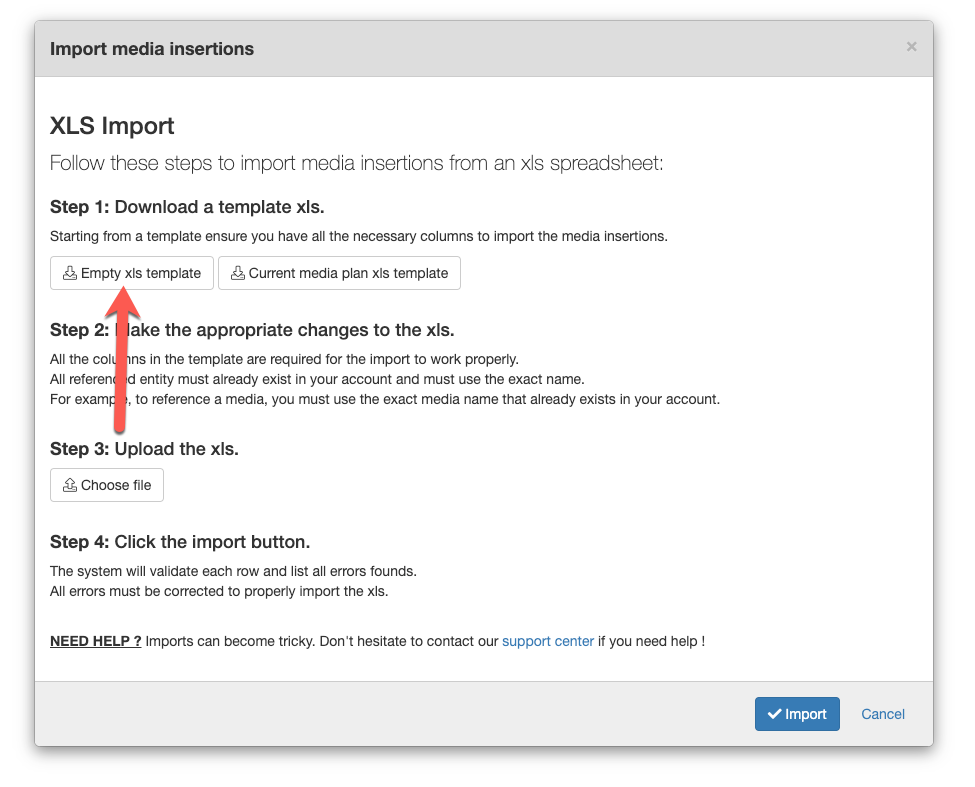
Step 4: Click on the template button:
- "Empty xls template" will download the empty xls template.
- "Current media plan xls template" will download an xls template with the media insertions of your current search and filters.
Step 2: Fill the xls with the media insertion information
All the columns in the template are required for the import to work properly.
All referenced entities must already exist in your account and must use the exact name.
For example, to reference a media, you must use the exact media name that already exists in your account.
Here are the columns:
| Column Name | Description | Required | Example |
|---|---|---|---|
| LINE NUMBER | The media insertion line number. This is a sequential number used by the PARENT LINE NUMBER. It must be left empty when a PARENT LINE NUMBER is defined. |
Yes | 1 |
| PARENT LINE NUMBER | Used to define multiple flights for a media insertion. It must reference an existing LINE NUMBER. Only required for subsequent flights. |
Yes | 1 |
| MEDIA PLAN | The name of the media plan as defined in the "Media plans" module. |
Yes | FY 2019 |
| CAMPAIGN | The name of the campaign as defined in the "Media plans" module. The campaign must be part of the media plan defined above. |
No | Black Friday |
| ORGANIZATIONS | A comma-separated list of the organization names as defined in the "Organizations" module. The organization must be part of the media plan defined above. |
Yes | GDX Montréal,GDX Québec |
| INSERTION NAME | The name of the insertion. Depending on your custom field template, this name may be optional or mandatory. |
Depends | Promotion week: Save 25% |
| MEDIA CATEGORY | The name of the media category of the media as defined in the "Medias" module. Only used to create new media. |
Yes | Newspaper |
| MEDIA VENDOR | The name of the media vendor of the media as defined in the "Medias" module. Only used when creating new media. |
No | |
| MEDIA | The name of the media as defined in the "Medias" module. Not found media will be added with the defined media category and media vendor. |
Yes | Journal de Montréal |
| MEDIA FORMAT | The name of the media format as defined in the "Medias" module. Not found media format will be added to the media. |
No | 1/8 OF A PAGE W 5.04” X H 3.14” |
| MARKETS | A comma-separated list of the market names as defined in the "Administration > Markets" module. | No | Montréal,Québec |
| GENDERS | A comma-separated list of the gender names. | No | Men,Woman,Dual |
| AGE | Age range. | <99 9-99 >99 |
|
| INCOME | Income range | <$ 9999 $ 9-$ 9999 >$ 9999 |
|
| INSERTION STATUS | The name of the media insertion status as defined in the "Administration > Media insertion statuses". | Yes | Booked |
| INSERTION ORDER NUMBER | The insertion order number. Depending on your account configuration, this number may be self defined or auto-generated. |
Depends | 0017-4 |
| *** Start of Flight Date & Cost Columns *** Repeat these columns in additional rows to define additional flights. The parent line number column links the flights with the parent media insertion. |
|||
| START DATE | The start date. The date format depends on your account configuration. |
Yes | 1/1/2019 |
| END DATE | The end date. The date format depends on your account configuration. |
No | 1/23/2019 |
| APPLICABLE DAYS | The applicable days within the start and end date. The first day of the week depends on your account configuration. Use an em dash "—" for non applicable days. (https://www.thepunctuationguide.com/em-dash.html) |
No |
Su — Tu We Th Fr Sa |
| APPLICABLE HOURS | The applicable hours. | No | 4A-6A |
| UNIT COSTS | The unit cost. | Yes | 1000 |
| COST TYPE | The cost type. Supported values are: CPA, CPM, CPC, CPL, CPP, CPV, FLAT, /Item, /Hour, /Day, /Week, /Month, /4Week |
Yes | FLAT |
| QUANTITY | The quantity | Yes | 1 |
| PLANNED NET COST | The planned net cost | Yes | 1000 |
| *** End of Flight Date & Cost Columns *** | |||
| PLANNED TOTAL NET COST | The planned total net cost | Yes | 1000 |
| <TAX> PLANNED COST | The tax amount for a given tax as defined in the "Administration > Taxes" module. | No | 150 |
| PLANNED TOTAL VENDOR COST | The planned total vendor cost. | Yes | 1150 |
| PLANNED COMMISSION RATE | The planned commission rate. Put 0 if you are an advertiser not charging a commission. |
Yes | 0 |
| PLANNED TOTAL COMMISSION COST | The planned total commission cost Put 0 if you are an advertiser not charging a commission |
Yes | 0 |
| PLANNED TOTAL CLIENT COST | The planned total client cost. The planned total client cost is equal to the planned total vendor cost for advertiser not charging a commission |
Yes | 1150 |
| NEED CREATIVE PROJECT | Whether this media insertion requires a creative project. | Yes | TRUE/FALSE |
| SPECIFICATION | The specification for the creative project. Only required if the "Need creative project" is TRUE. |
- | |
| PRODUCTION DATE | The production date for the creative project. Only required if the "Need creative project" is TRUE. The date format depends on your account configuration. |
- | 1/1/2019 |
| DELIVERY DATE | The delivery date for the creative project. Only required if the "Need creative project" is TRUE. The date format depends on your account configuration. |
- | 1/2/2019 |
| PRIORITY | The priority for the creative project. Only required if the "Need creative project" is TRUE. |
- | High |
| PROJECT STATUS | The status of the creative project as defined in the "Administration > Creative project statuses". Only required if the "Need creative project" is TRUE. |
- | To do |
| NOTES | The notes. | No | |
| <ORGANIZATION> PLANNED COST | The planned cost split for each organization name listed in the ORGANIZATIONS column | Yes | 500 |
| <ROLE> ASSIGNMENT | The assignment user name for each role as defined in the "Administration > Roles" module. | No | John Doe |
| <ROLE> EFFORT | The effort for each role as defined in the "Administration > Roles" module. | No | 12 |
| <FIELD> | The value for each custom field defined by the field template used by the media plan. The format and required nature depends on the configuration of the field. |
- | |
Step 3: Upload the xls
Now that your xls is ready, follow these steps to import it into your account.
Step 1: Go to the "Planning" module.
Step 2: Click on the import/export button. Select the import from Excel option. This will display the import xls form.
Step 3: Click the "Choose file" button and select your xls file.
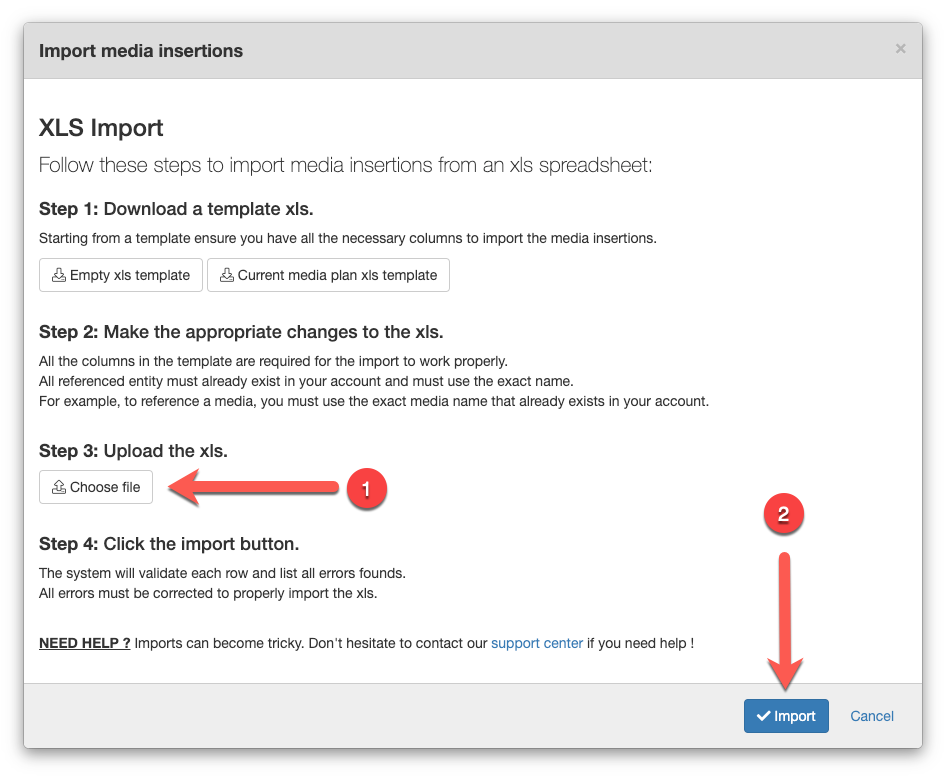
Step 4: Click the "Import" button. This will upload the xls file and validate its content to create the media insertions.
If the xls file contains errors, they will be listed in a "Step 5" section.
You'll need to fix the errors either in the xls file directly or in your account. All errors need to be fixed to successfully import your xls file.
The possible errors are:
Columns with empty header names
All header column name must be defined.
Column <Column Name> contains unknown values
This highlight references to entities that are not found in your account. For example, a typo in a project status or a project status that does not exist in your account.
LINE NUMBER <Row Number> contains validation errors
These are the same validation errors you would get when creating your media insertion through the portal.
Comments
0 comments
Article is closed for comments.