
Now that you've publish a request form, you need to setup which organization can receive requests.
Understanding the relation between project requests and organizations
A project request must be associated to an organization.

The "Organization" combo-box feed its options from the Organizations module based on the Display in request form configuration:

Customizing the terms
The term "Organization" is customizable for the request form.
Follow these steps to customize the term in your account:
Step 1: Go to the Administration module.
Step 2: Go to the Dictionary sub-module.

Step 3: Click the Edit button of the "dictionary.request.*" to fit your needs.
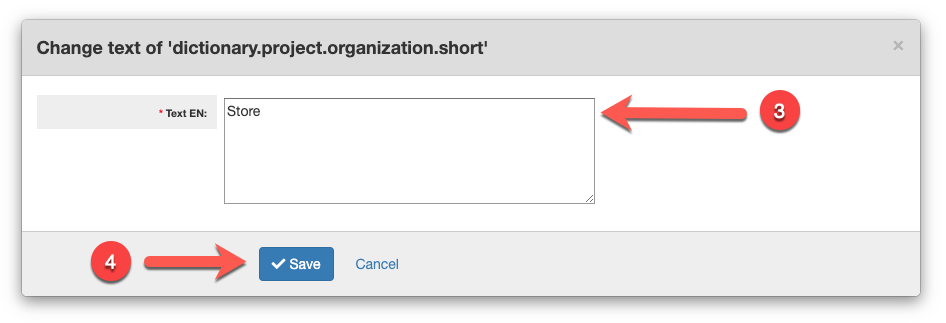
For example, the Retail Stores may customize the term as follow:
- dictionary.request.organization=Store
Step 4: Click the Save button.
The Organizations module will now use these terms:

The request form will also use these terms:

Configure organizations for requests
Follow these steps to enable an organization for requests in your account:
Step 1: Go to the Organizations module.
Step 2: Click on an organization in the right pane. This will display the selected organization details in the right pane.

Step 3: Click on the Edit button. This will display the Update organization form.

Step 4: Click to select the Display in request form as... accordingly.
Step 5: Click the Save button.
The organization list will now display an icon that identifies that an organization is displayed in the request form:

Adding the organization to a media plan
Note that an organization must be included in a media plan to appear in the request forms.
The system will display a warning when an organization has the "Display in request forms" option, but is not included in any media plans:

See Adding an organization to a media plan to fix the warning.
Comments
0 comments
Article is closed for comments.