
The first thing you need in order to enable your clients to submit requests is to configure project types with request forms.
Project types define the different services your marketing departments provides to your internal/external clients.
The request forms associated to the project type are the questions and information you want to ask and collect from your clients.
You can define multiple project types in your account. Each project type has a different form with configurations and triggers.
Configurations
Form publish status: Determine whether or not the form is published and who can use it.
- Not published: The form is not published, thus cannot be used by anybody.
- Published internally: The form is published and can only be used by users with "Create/Update/Delete projects" permissions in the production module. This is useful when you only want your internal marketing agents to have access to special project types.
- Published: The form is published and can be used by all users.
Name, Short description, Long description and Color: Determine how the project type is displayed in the marketing request system:
- In the request list (where your clients sees the possible request they can submit):

- In the request form (inside the form after your client selected a request):
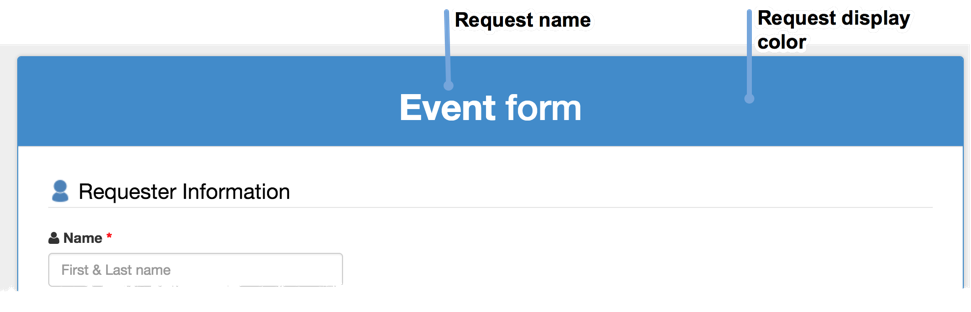
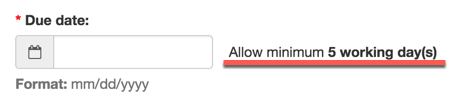
Nb working days to due date: The minimum number of working days required to deliver the request on time for the requested due date.
The request form will display the required minimum working days:
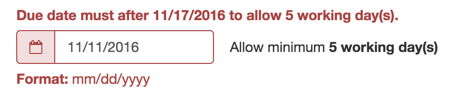
The requester will get an error when the given due date is within the minimum number of working days:
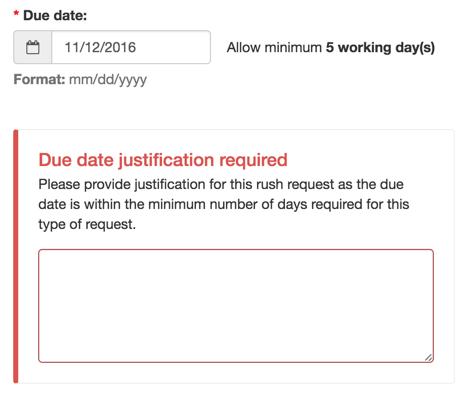
Allow rush with justification: Allow request to be submitted even thought the due date is within the minimum number of working days. The requester will be prompt for justification if the date is within the minimum number of days to delivery:
Send to emails on X status: Send an email to a fix list of email addresses when a request is set to the X internal status (e.g.: initial, pre-approved, approved, and done). The email addresses are specified as a comma separated list.
Listing project types & forms
To list project types:
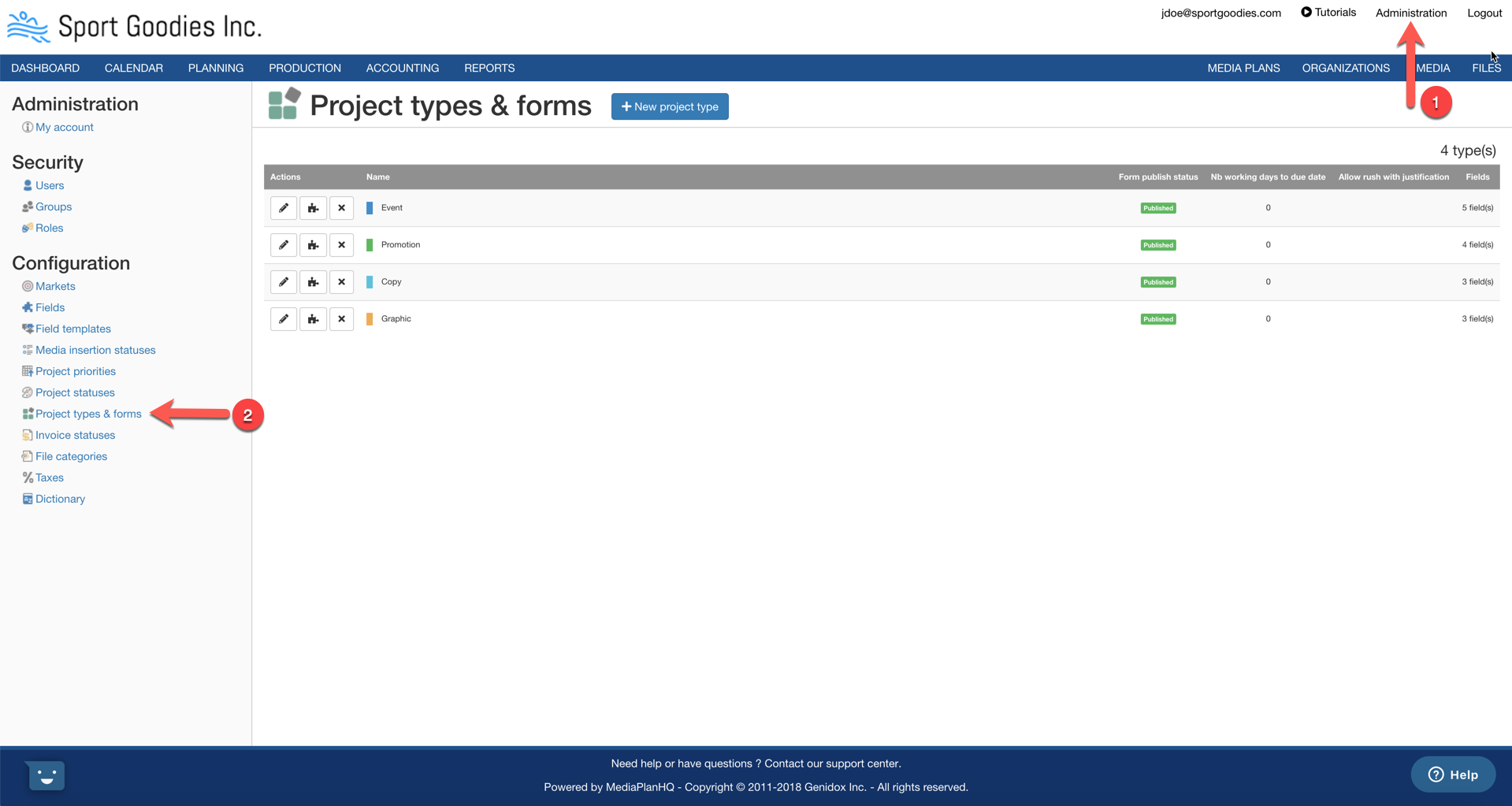
Step 1: Go to the "Administration" > "Project types".
This will bring you to a page that lists all the project types:
Creating a project type
To create a project type:
Step 1: From the project type list, click the "New project type" button.

This will display the "Create project type" form.
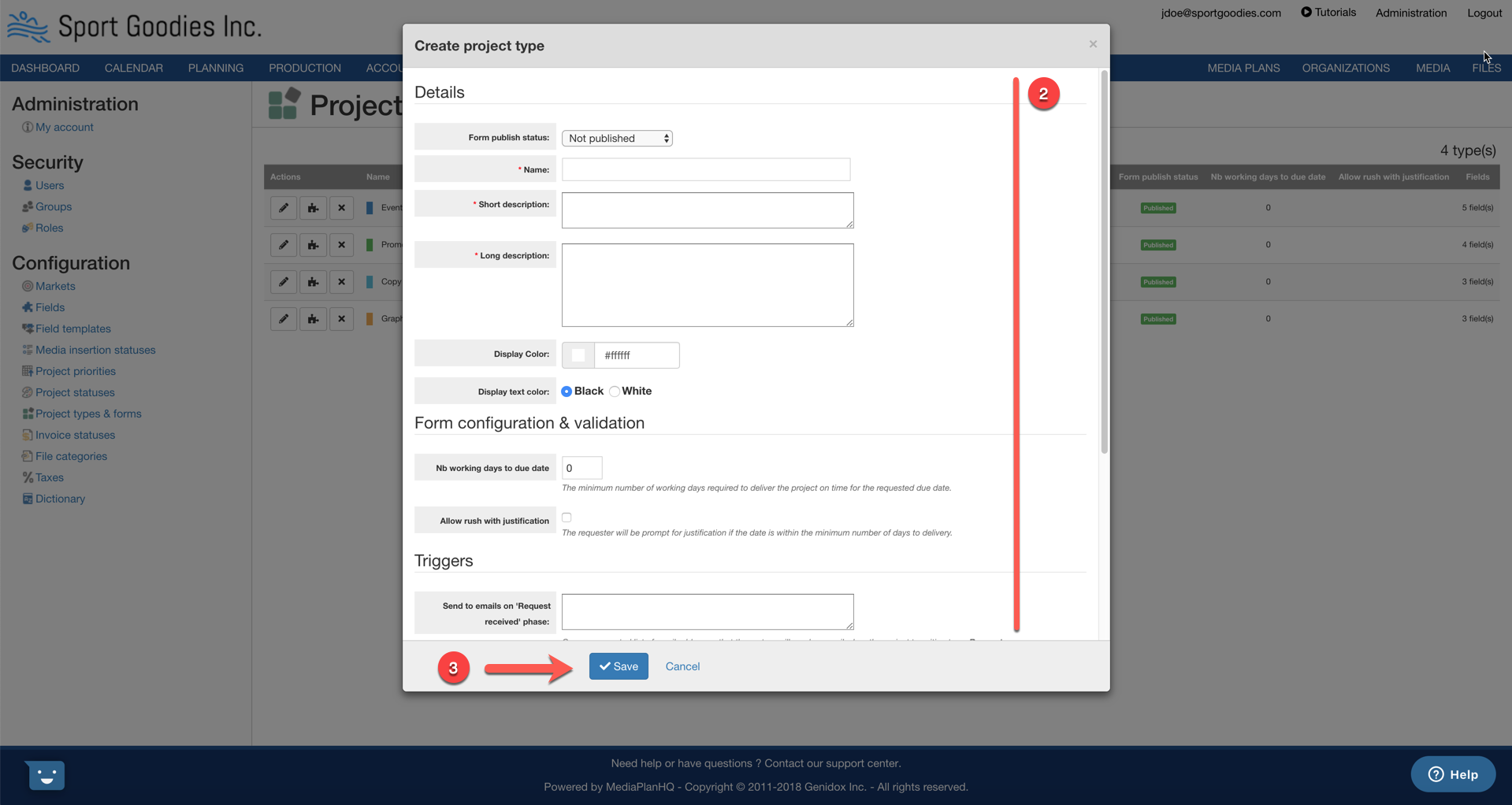
Step 2: Enter the mandatory information.
Step 3: Click the "Save" button.
Update a project type
To update project types:
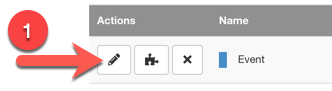
Step 1: From the project type list, click the "Update" icon (a.k.a pencil icon) next to the appropriate project type.
This will bring you the "Update project type" form.
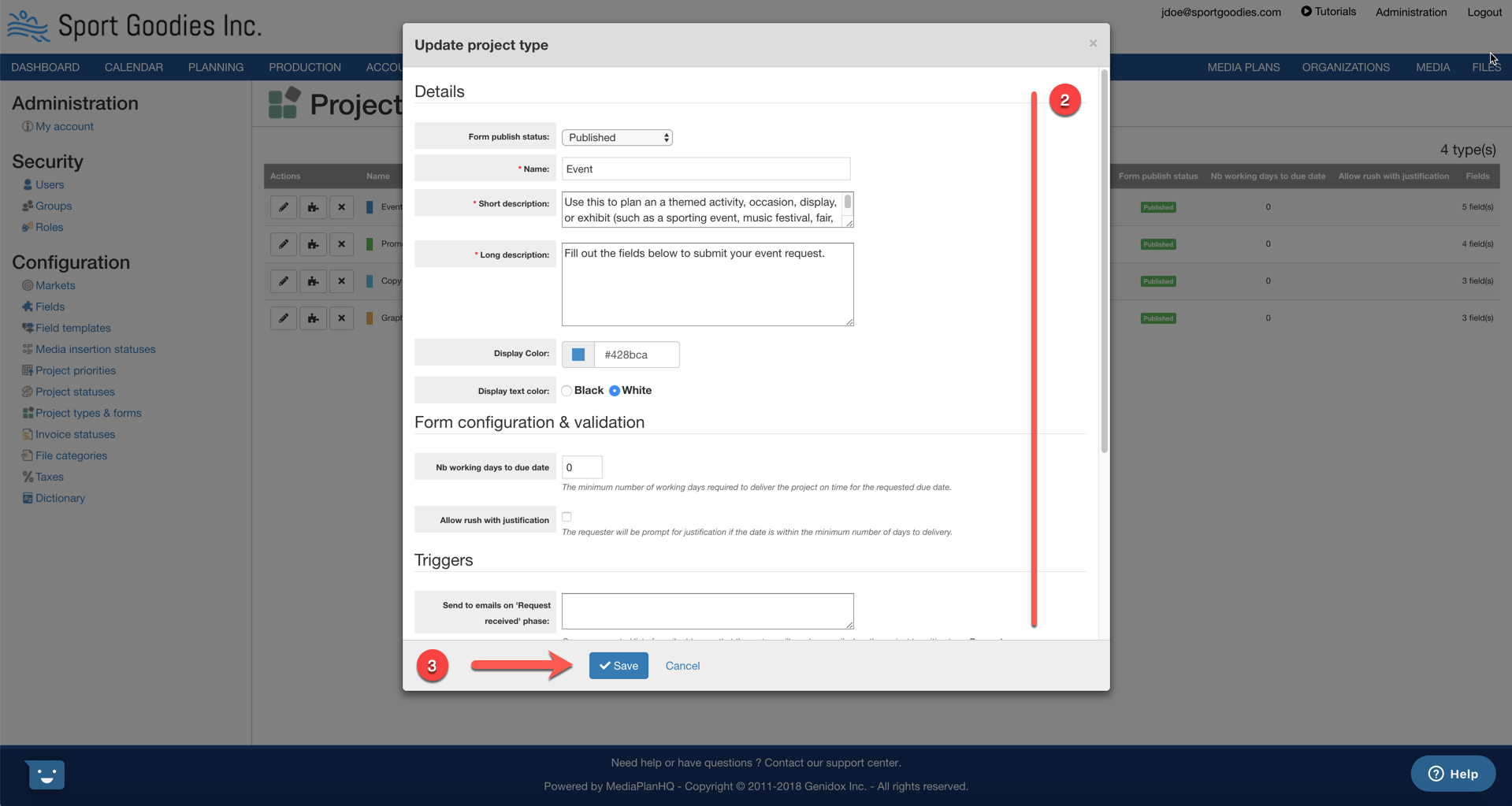
Step 2: Modify the information.
Step 3: Click the "Save" button.
Delete a project type
To delete project types:
Step 1: From the project type list, click the "Delete" icon (a.k.a "X" icon) next to the appropriate project type.
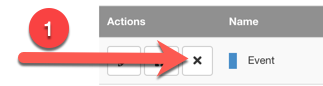
This will display the "Delete project type" dialog.
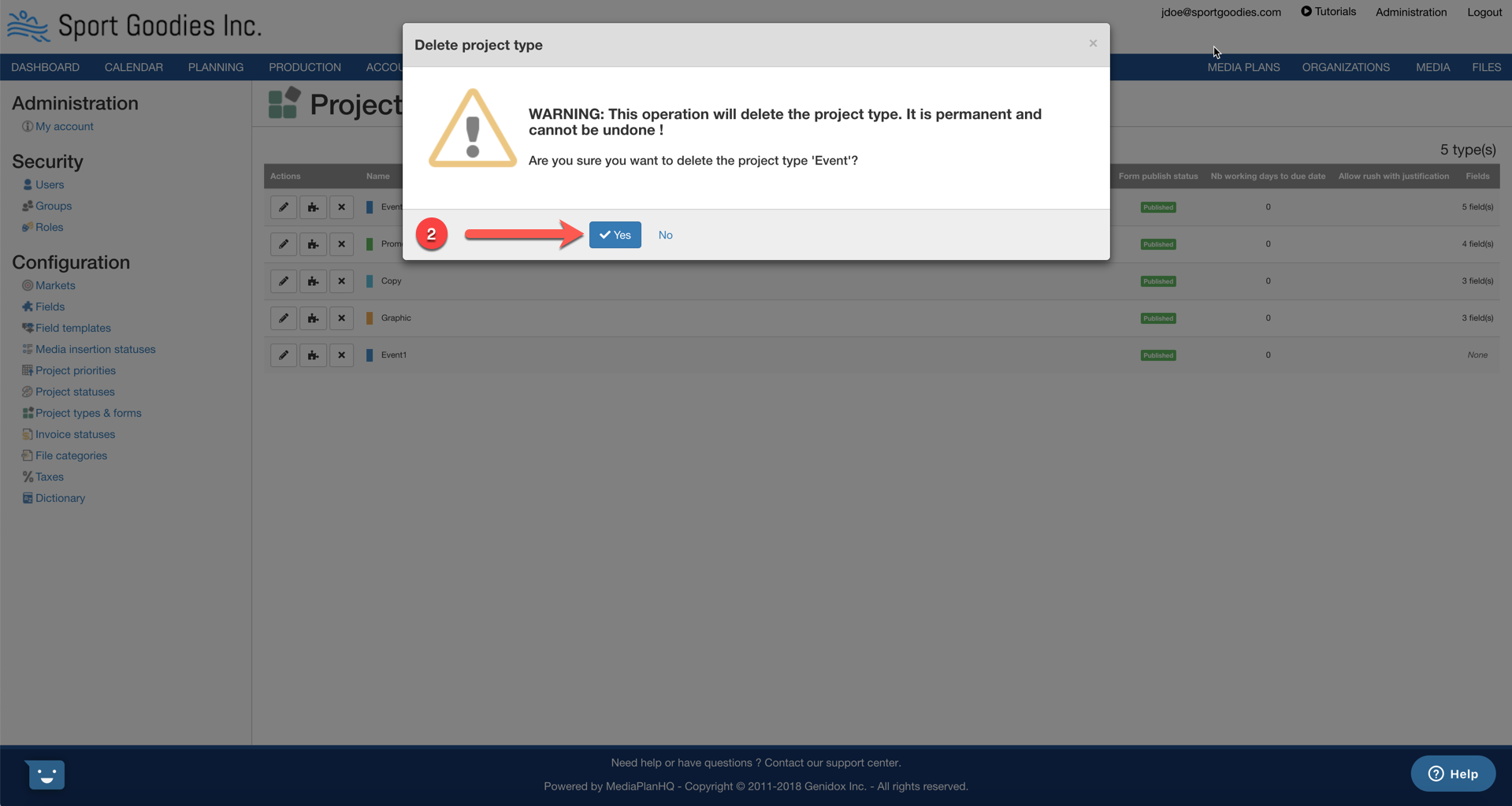
Step 2: Click the "Yes" button.
Comments
0 comments
Please sign in to leave a comment.